
 Markdown Monster Delphi Syntax Highlighting
Overview
- Download and install a custom version of HighlightJS JavaScript that supports desired languages.
- Visit the HighlightJS website
- Specify the desired custom support
- Download the resulting JavaScript file
- Install the custom JavaScript file in your Markdown Monster
- Enable your additional languages by specifying the Fence Name to HighlighterJS Language Name 1
- Relaunch Markdown Monster for changes to take effect.
Create, Download and Install the Custom HighlightJS Script
- Visit HighlightJS and click on Download from the main menu at the very top right of the home page.
- The default HighlightJS script supports all the languages identified as Common.
- I recommend keeping that minimum set in your custom download.
- Click the Common check box.
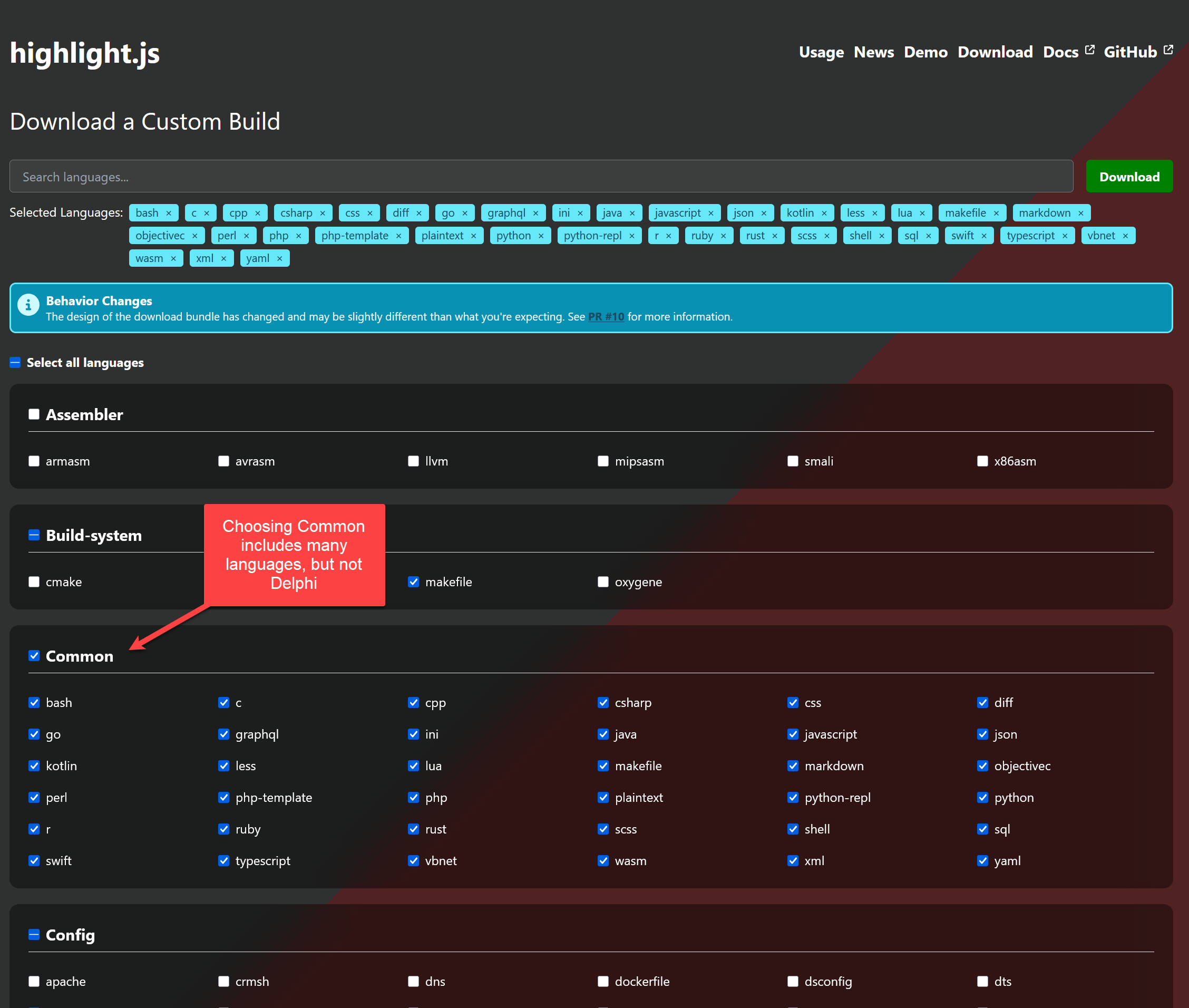
- Since Delphi is not included as a Common language, scroll down to the System Category. There, choose Delphi to add it to the list of languages supported.
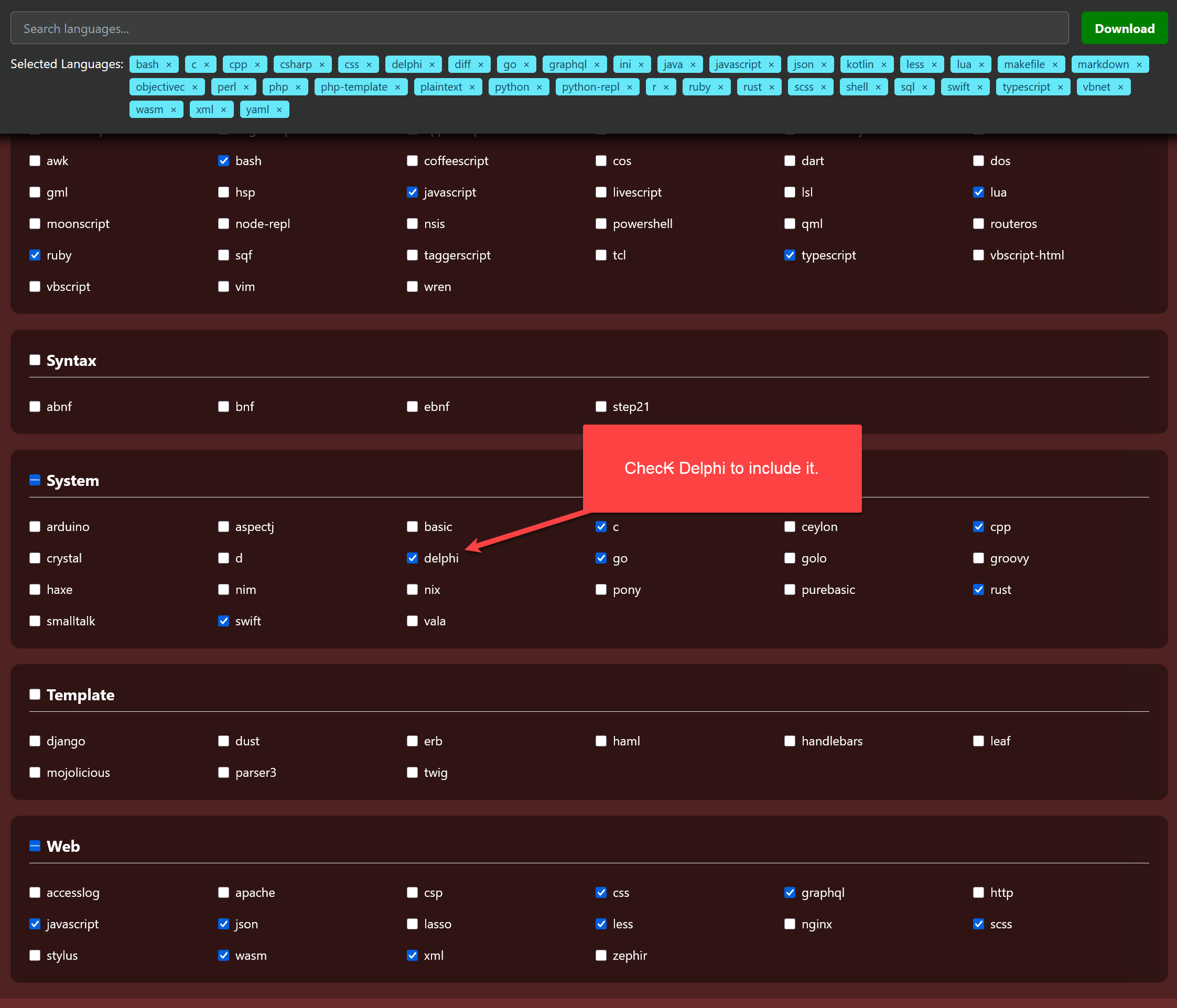
- Click the green Download button to create and download your custom JavaScript file.
Tip
Generating the custom download takes a few seconds. Resist the temptation to click the
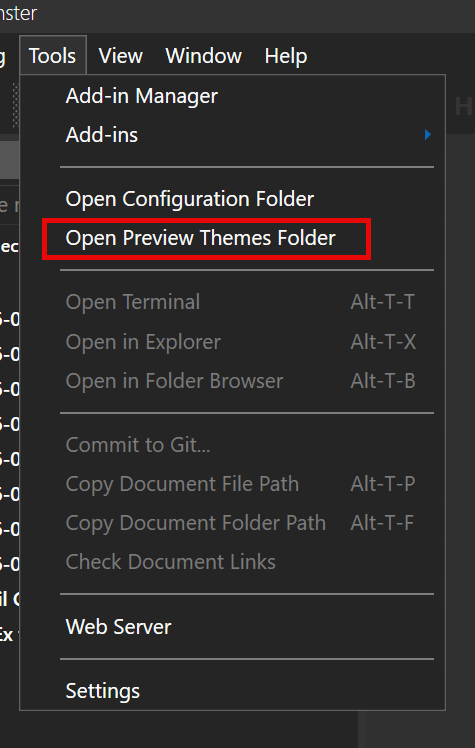
Download button multiple times or you will get multiple copies of the same custom download.- Open your Markdown Monster. Use Tools→Open Preview Themes Folder from the Main Menu to open the Preview Themes folder. This will open the theme folder currently in use.
- Use the up arrow (↑) in Explorer to navigate to the Preview Themes Folder.
- Open the
scriptsfolder
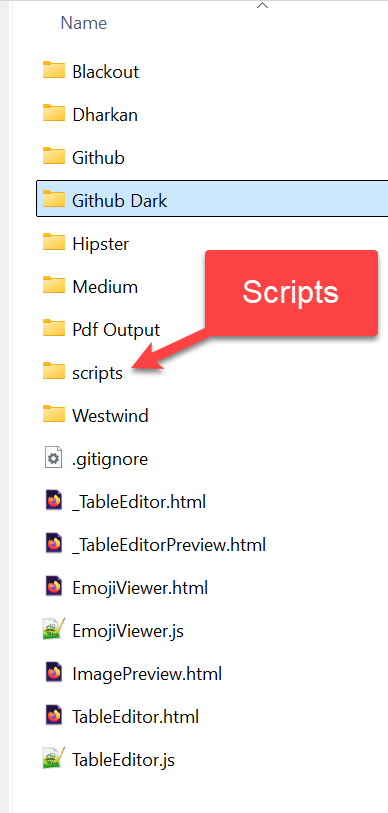
- and the
highlightjsfolder.
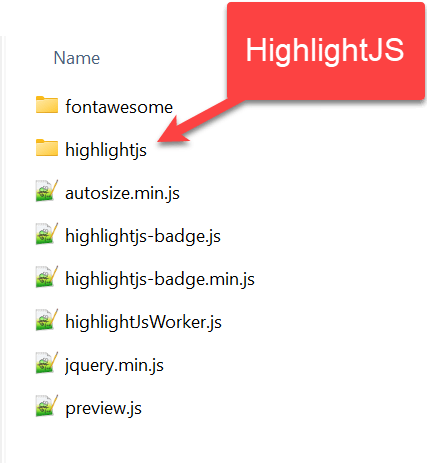
- Copy the file
highlight.min.jsfrom your custom download into Markdown Monster's highlightjs folder. - Rename the
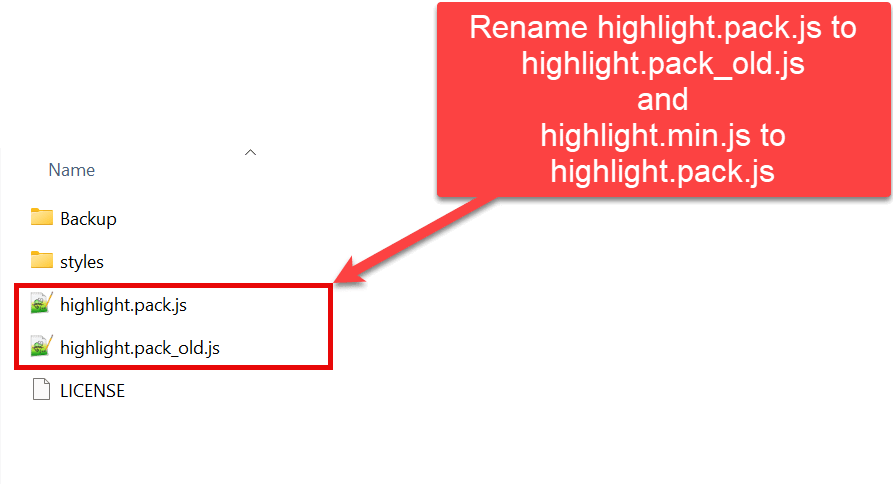
highlight.jsfiles as follows:- Rename
highlight.pack.jstohighlight.pack_old.js(or a similar name of your choice.) - Rename
highlight.min.jstohighlight.pack.js(this is the name by which the minified version is is known to Markdown Monster.)
- Rename
Enable Delphi Code Fence Names
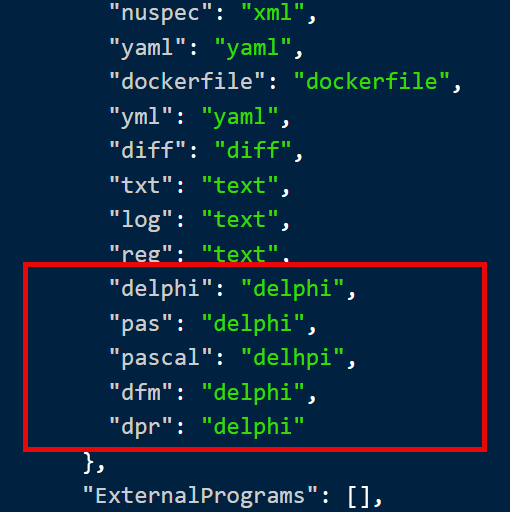
All forms of Delphi syntax highlighting are handled by a single JavaScript function named Delphi. In order to access that script function you must update Markdown Monster's Json configuration file. Here you must provide the necessary fence name aliases that direct Markdown Monster to the correct highlighting routine.
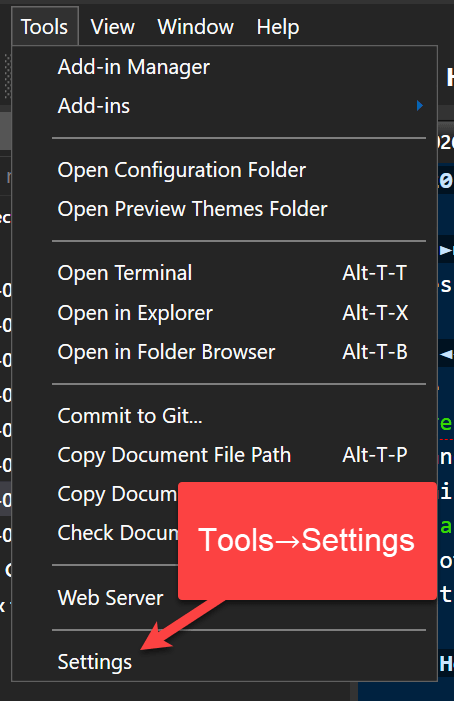
- Open Tools→Settings from the main menu.
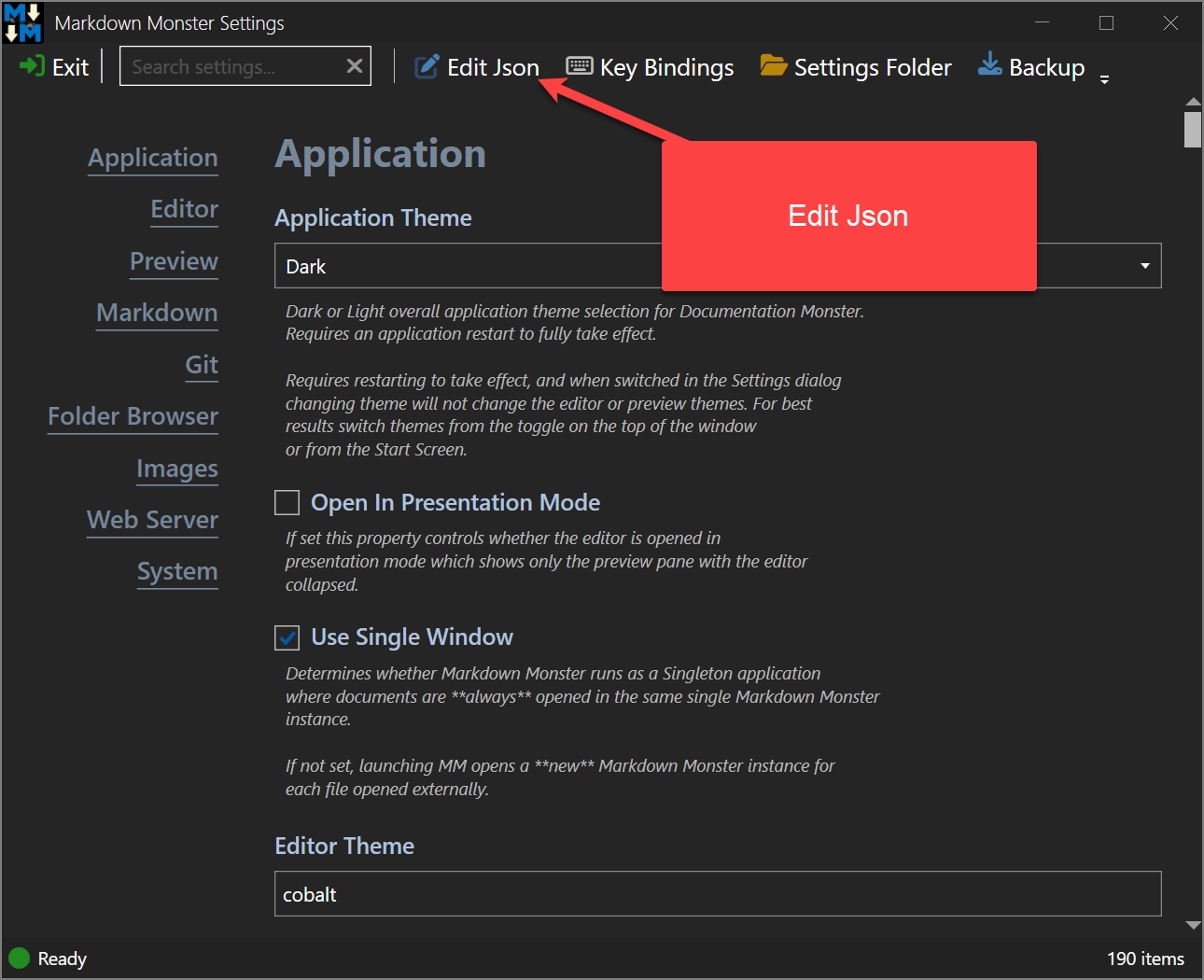
- From the Settings dialog, choose Edit Json.
- Scroll down to the Editor Extension Mappings section.
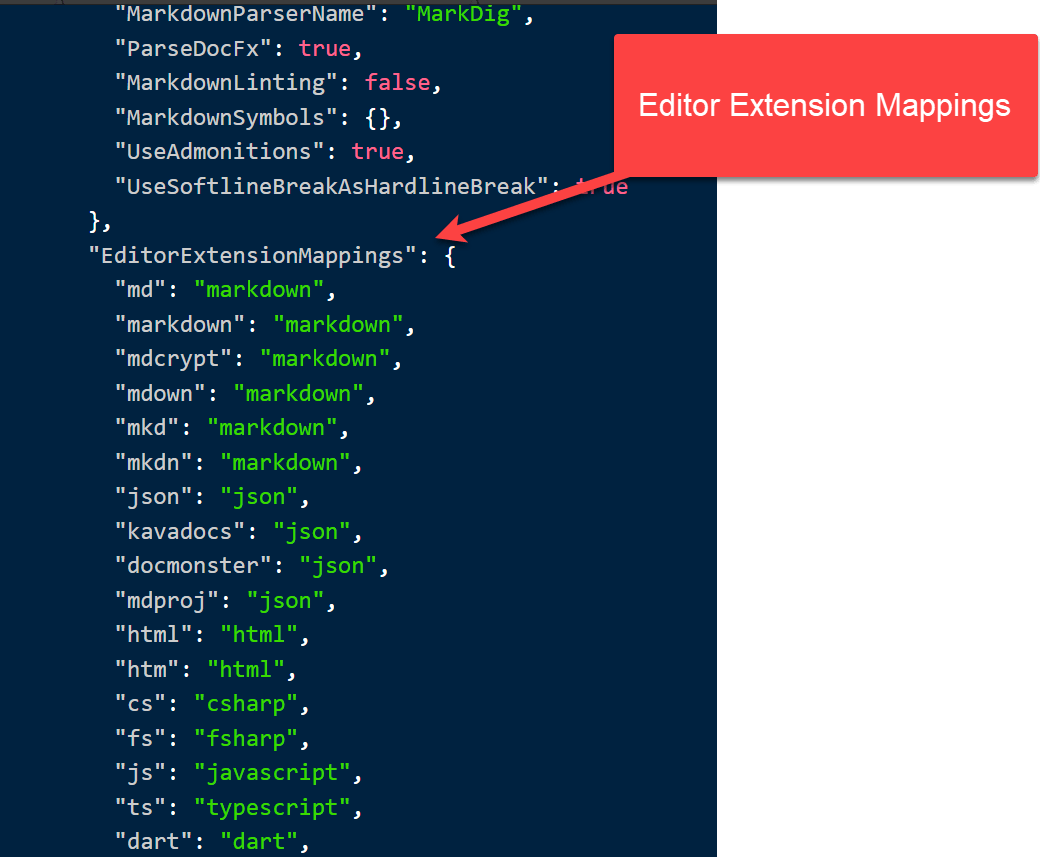
- Continue scrolling to the end of the section and add the required mappings from the Fence Name Designator to the HighlightJS JavaScript name for the language. In this case, we have added several aliases for the Delphi syntax formatter.
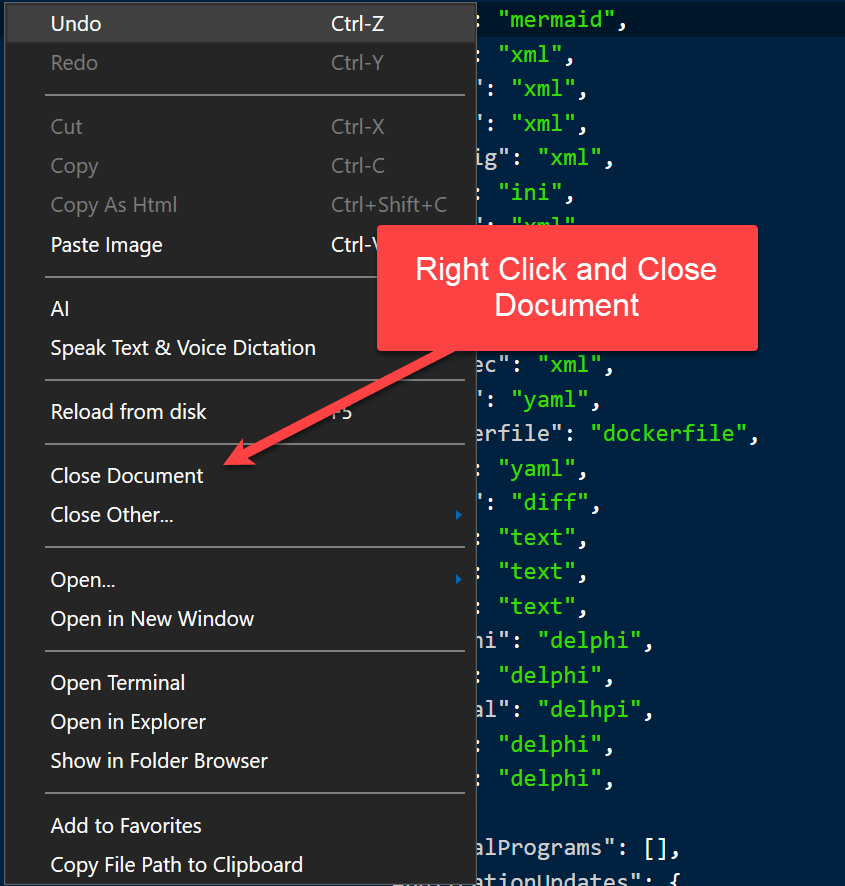
- Right click to bring up the context menu and
Close Document. Since you have changed the document, that will prompt you asking if you want to save your changes. Of course, replyYesto save them.
Close and Relaunch Markdown Monster
Relaunching Markdown Monster will use the updated configuration settings to enable Delphi syntax formatting.
-
Official HighlightJS specifications can be accessed at https://highlightjs.org/↩
© VyDevSoft, 2026 •
updated: Jul 06, 2026
Comment or report problem with topic
Comment or report problem with topic